QR codes for Office 365

QR codes let you share any Office 365 file, folder, or app link with multiple people without hassle. It removes the need to manually send long links or ask people to search. Others can simply scan the
QR codes let you share any Office 365 file, folder, or app link with multiple people without hassle. It removes the need to manually send long links or ask people to search. Others can simply scan the code to access your Office 365 document or workspace instantly. QR codes make collaboration swift.
How does a QR code for Office 365 work?
It works by converting an Office 365 document, folder, or app link into a QR code. When someone scans it, they are instantly taken to that exact file or page without typing or searching. A QR code ensures users reach the right content in just one scan.
Below are some use cases of QR codes for Office 365 and how they can be helpful for you:
| Use Case | How It Helps |
| Team Collaboration | Share QR codes that open shared Office 365 documents, spreadsheets, or presentations instantly. |
| Onboarding & Training | Companies can use QR codes to guide new employees to Office 365 training resources. |
| Event Materials | Add QR codes on posters or invites that link to event agendas or presentations in Office 365. |
| Classroom Learning | Teachers can share QR codes that lead students to assignments or notes stored in Office 365. |
| Internal Communication | Teams can use QR codes for quick access to shared calendars, tasks, or project dashboards. |
Benefits of using QR codes for Office 365
- Give people instant access to files or folders in Office 365.
- Remove the need to type or remember long share links.
- Can be added to reports, study materials, presentations, or printed handouts.
- Work on any smartphone with a camera, no special app required.
- Track scans to see how people interact with shared files.
- Customize with colors, frames, or your organization’s logo.
- Use dynamic QR codes to update links or switch documents anytime.
How to create a QR code for Office 365 with QR Code Developer?
Follow the steps below to create an Office 365 QR code with QR Code Developer
Step 1: Go to cQR code developer and click on create QR code.

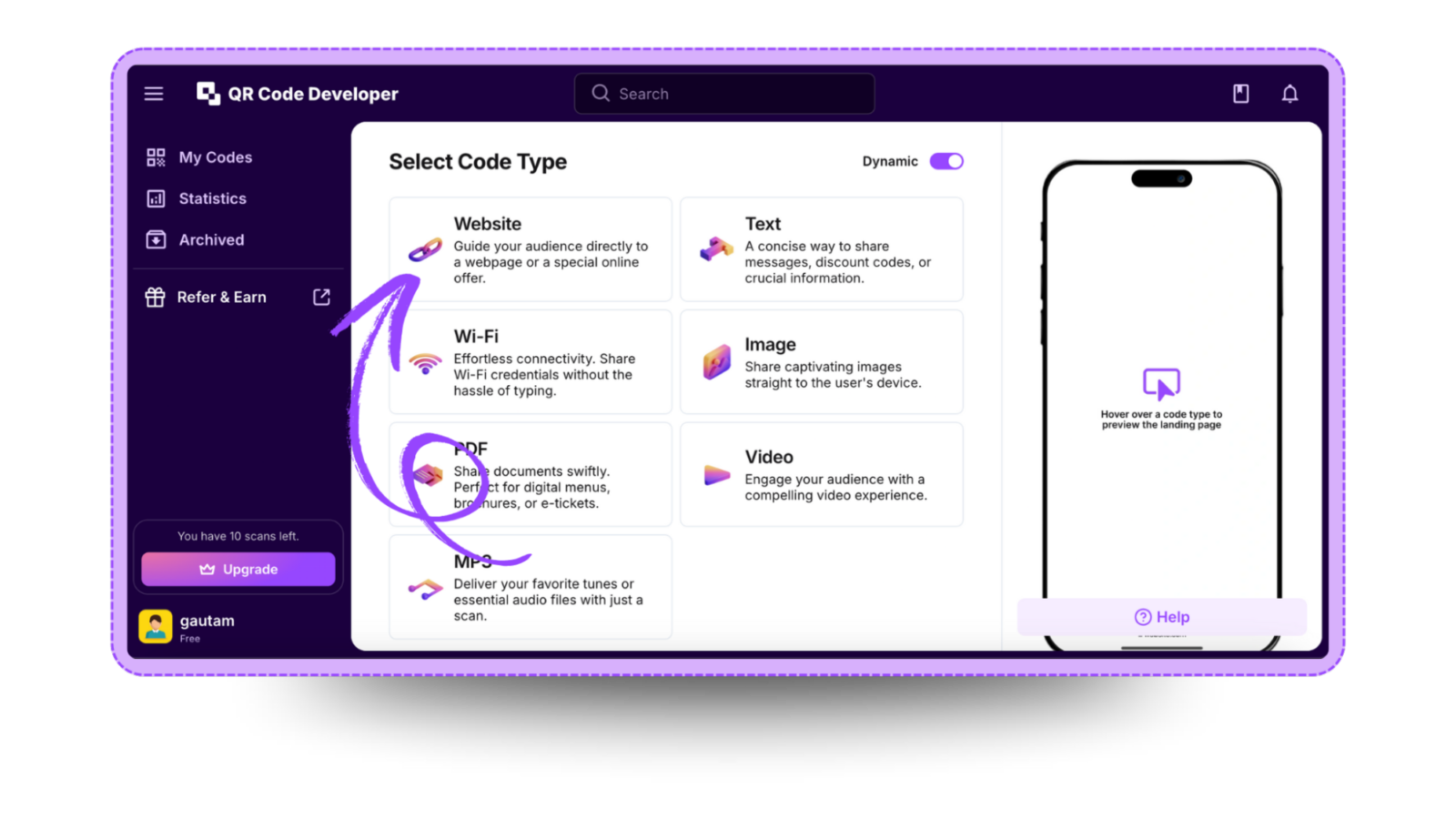
Step 2: Select the QR code type. For the Office 365 link, select the website option.
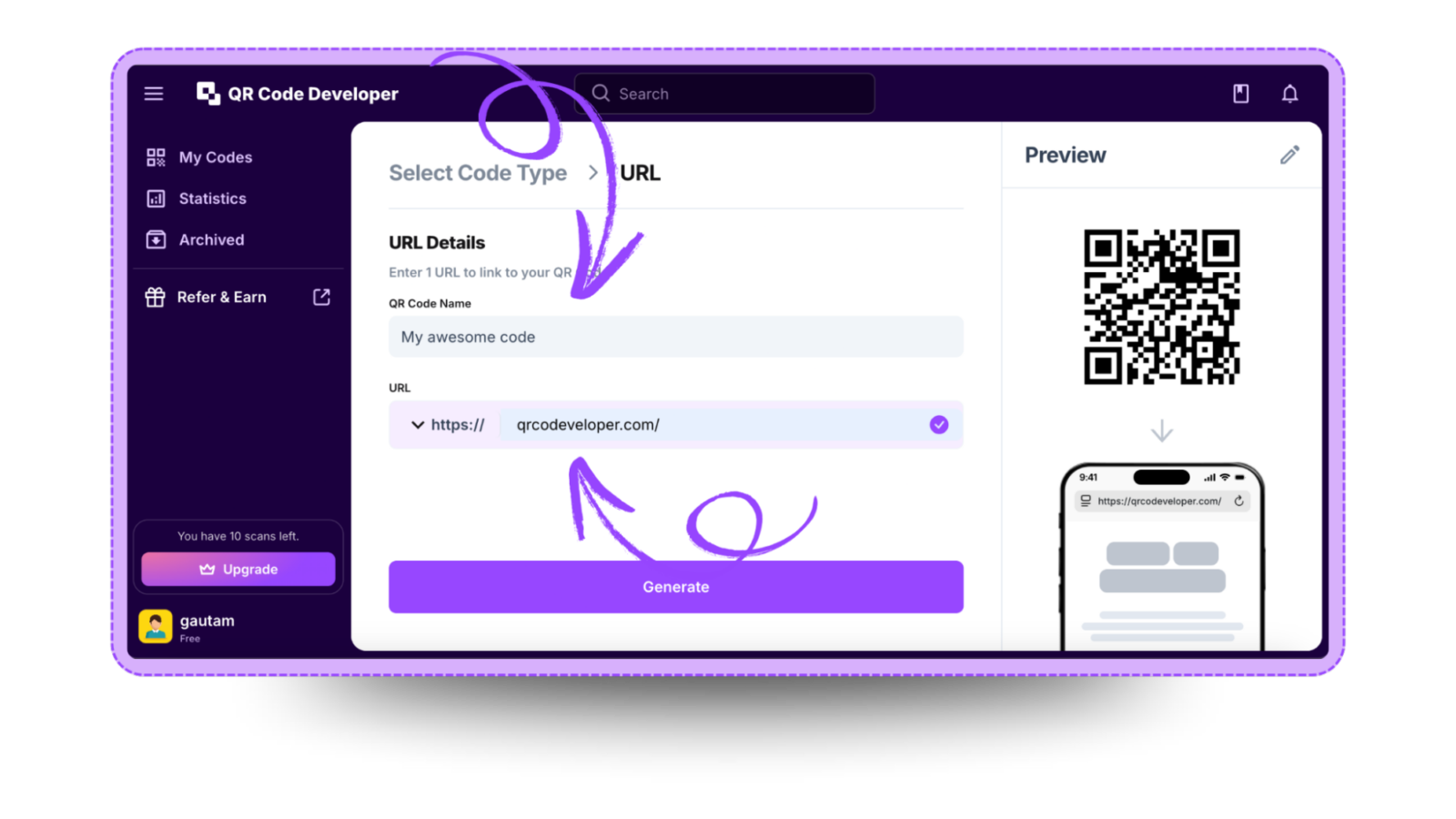
Step 3: Name your QR code and paste the link in the URL bar.
Step 4: Click on the Pencil icon in the top right corner for customization.
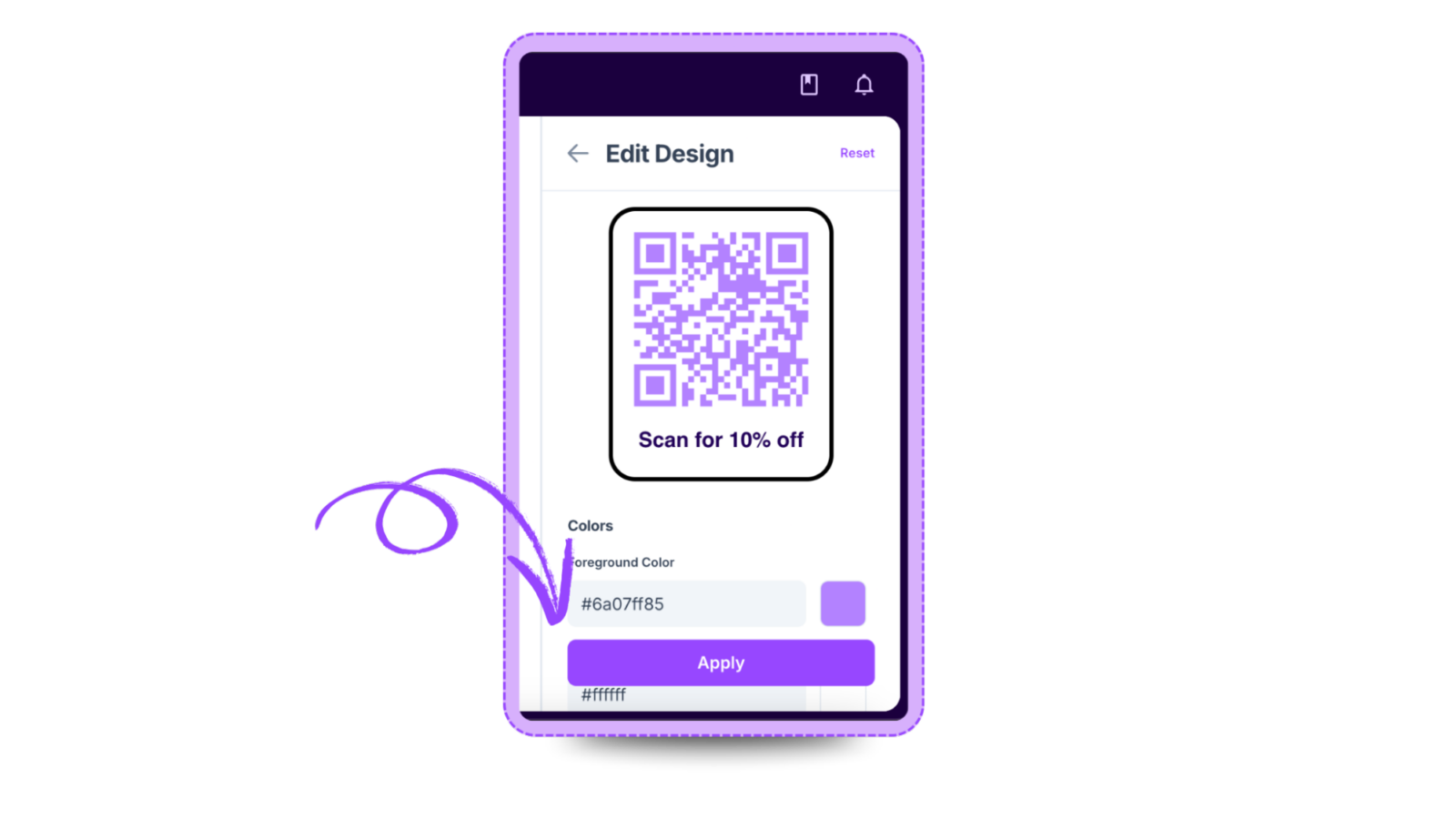
Step 5: Once done, click on Apply.

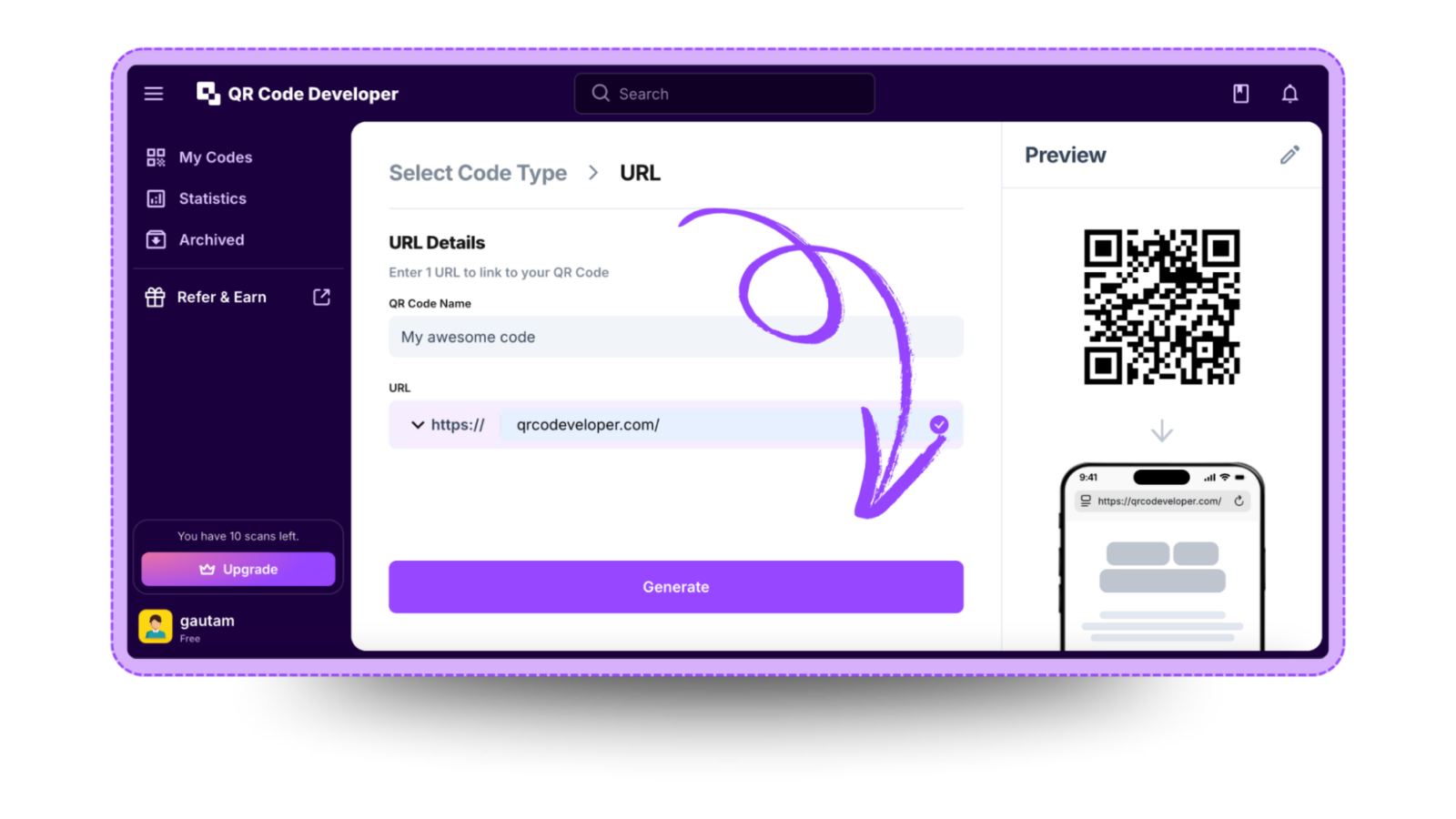
Step 6: Click on generate and your Office 365 QR code is ready!
Ready to create your QR code?
Generate custom QR codes in seconds - free and easy to use.
Create Free QR Code →