QR codes for Google Docs

QR codes let you share any Google Doc with multiple people without hassle. It removes the need to manually send links one by one. People can simply scan the code instead of typing long URLs or searchi
QR codes let you share any Google Doc with multiple people without hassle. It removes the need to manually send links one by one. People can simply scan the code instead of typing long URLs or searching for the document. QR codes make sharing smoother.
How does a QR code for Google Docs work?
It works by converting a Google Docs link into a QR code. When someone scans it, they are instantly taken to that document without typing or searching. A QR code ensures users reach the right document in just one scan.
Below are some use cases of QR codes for Google Sheets and how they can be helpful for you:
| Use Case | How It Helps |
| Document Sharing | Share a QR code so others can open your doc instantly without searching emails or links. |
| Business Proposals | Add a QR code on brochures or presentations that links to a detailed Google Doc proposal. |
| Classroom Resources | Teachers can give students quick access to notes, assignments, or study material through a QR code. |
| Event Guides | Place QR codes on posters or tickets that link to event schedules or instructions in Google Docs. |
| Team Collaboration | Teams can scan a QR code to access shared docs for editing and brainstorming quickly. |
Benefits of using QR codes for Google Docs
- Give people instant access to your Google Doc.
- Remove the need to type or remember long document links.
- Can be added to reports, study materials, presentations, or printed handouts.
- Work on any smartphone with a camera, no special app required.
- Track scans to see how many people access your document.
- Customize with colors, frames, or your brand logo.
- Use dynamic QR codes to update links or switch documents anytime.
How to create a QR code for Google Docs with QR Code Developer?
Follow the steps below to create an Google Docs QR code with QR Code Developer
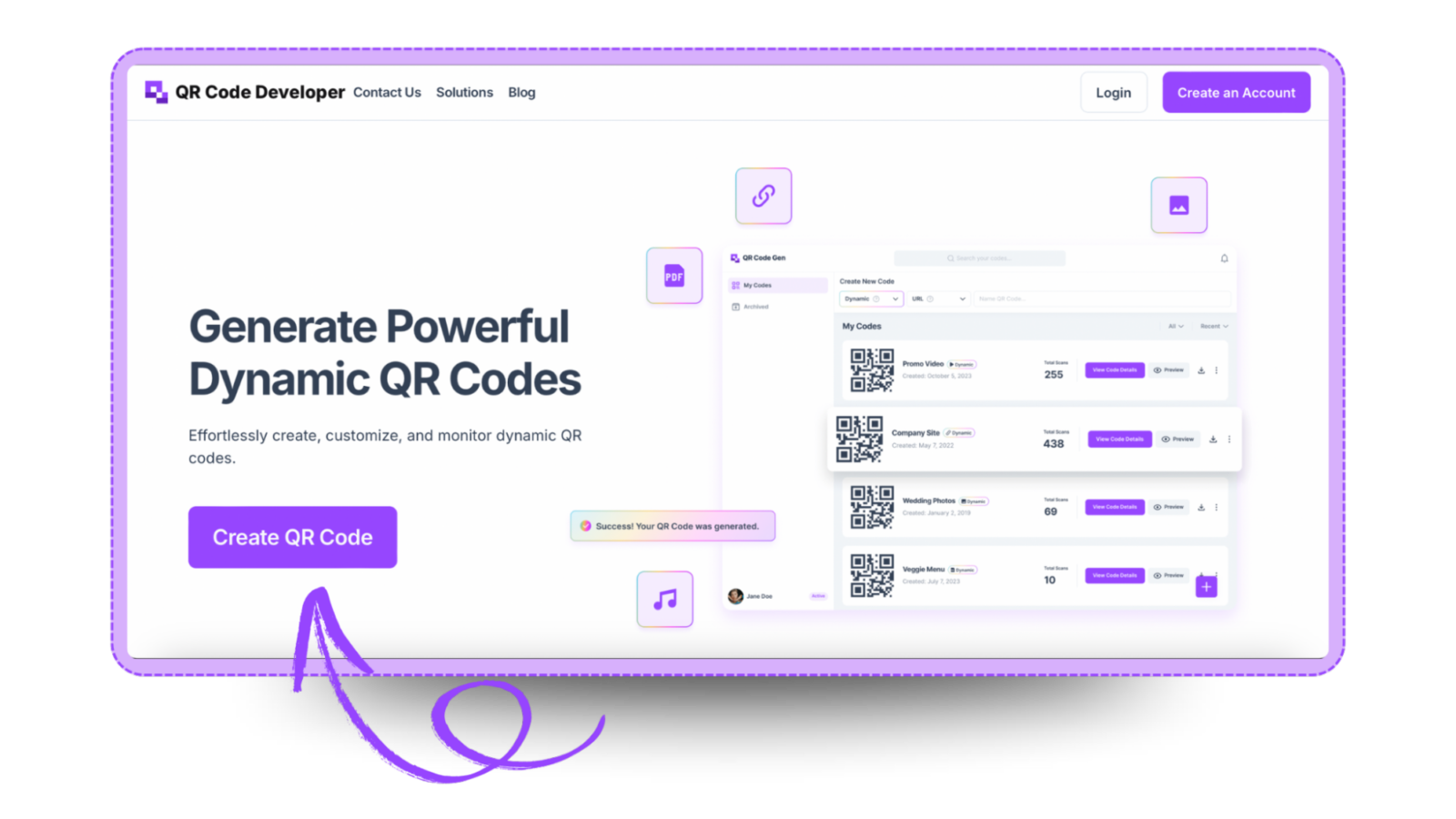
Step 1: Go to QR code developer and click on create QR code.
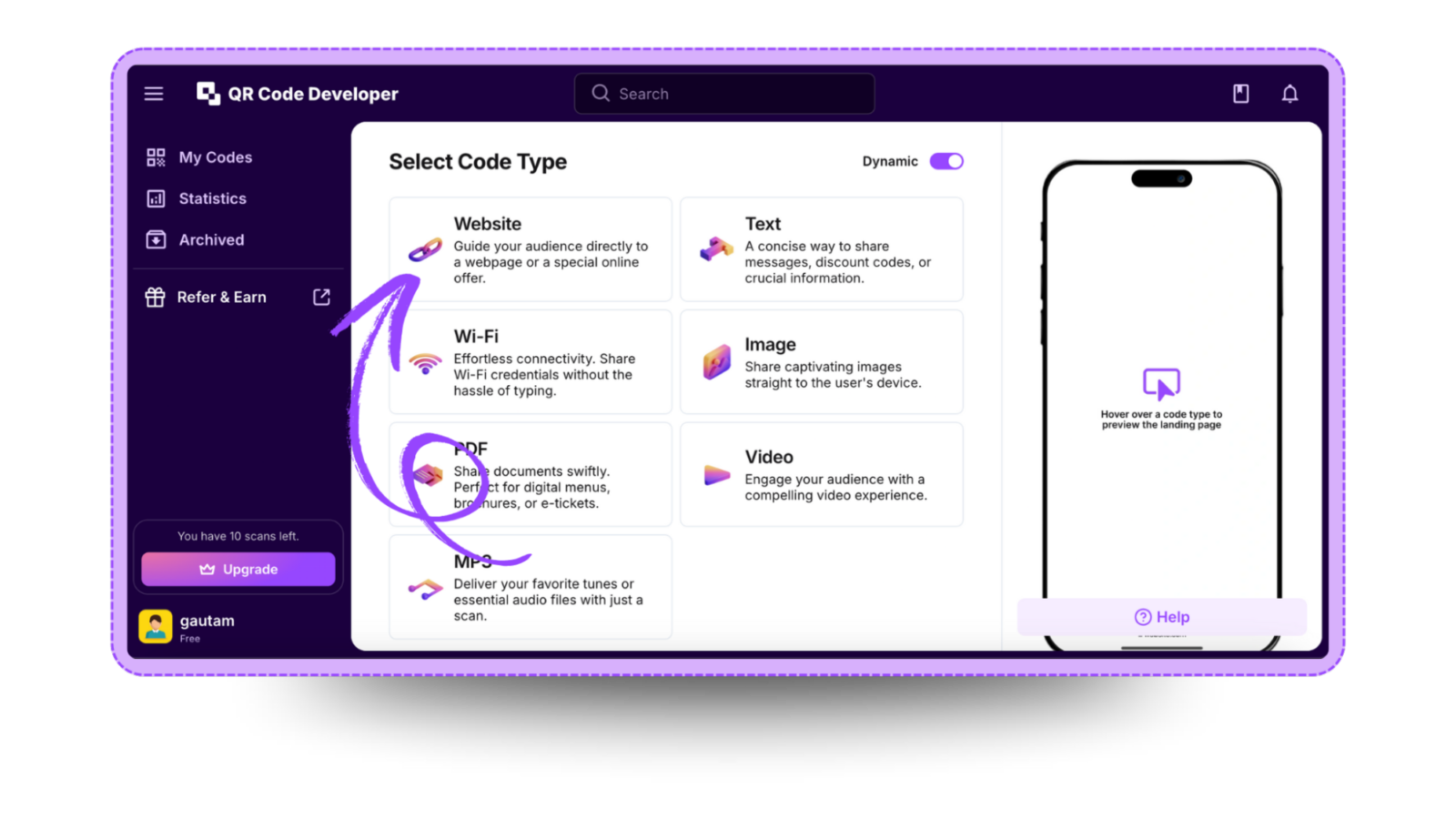
Step 2: Select the QR code type. For the Google Docs link, select the website option.
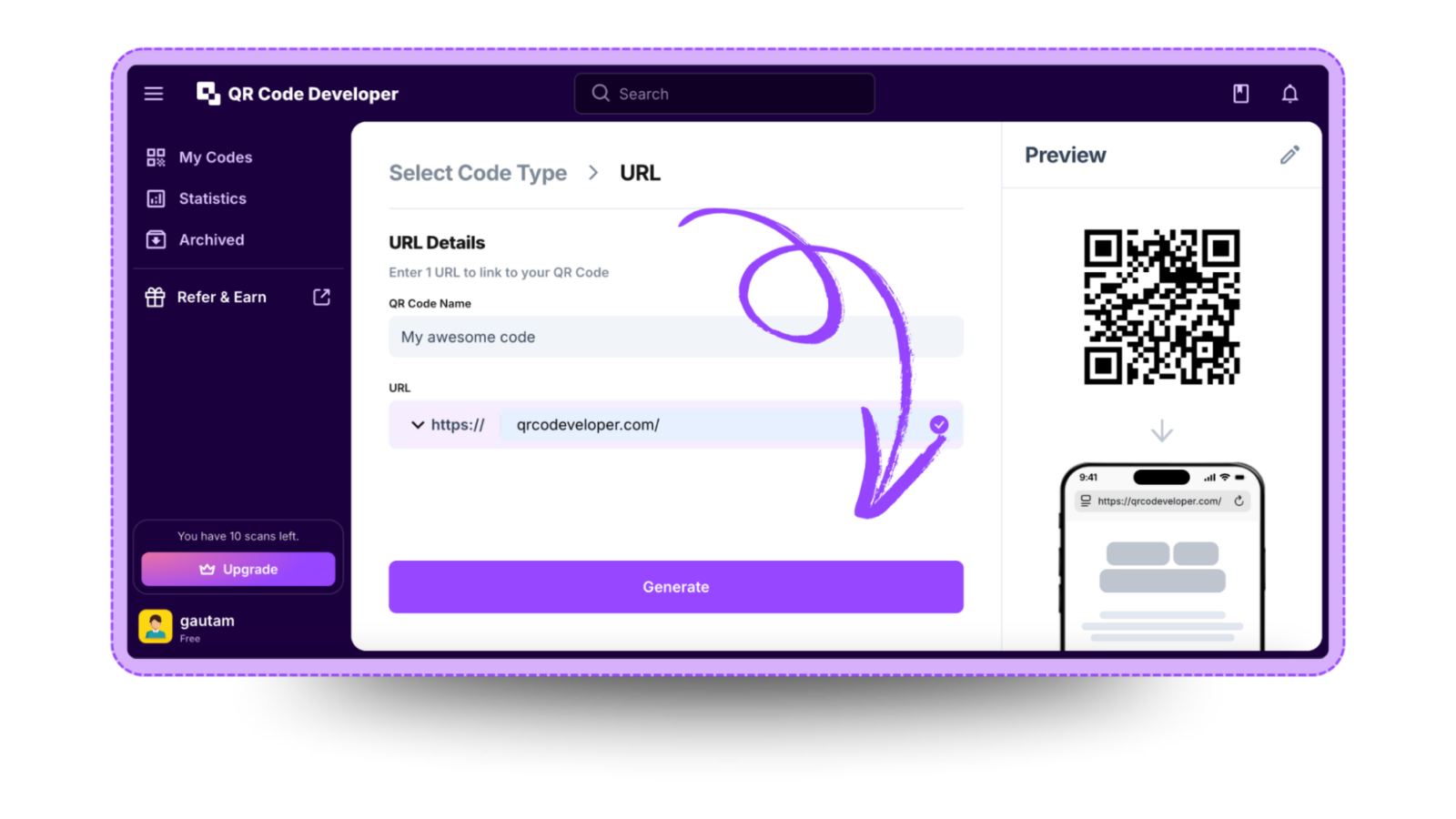
Step 3: Name your QR code and paste the link in the URL bar.
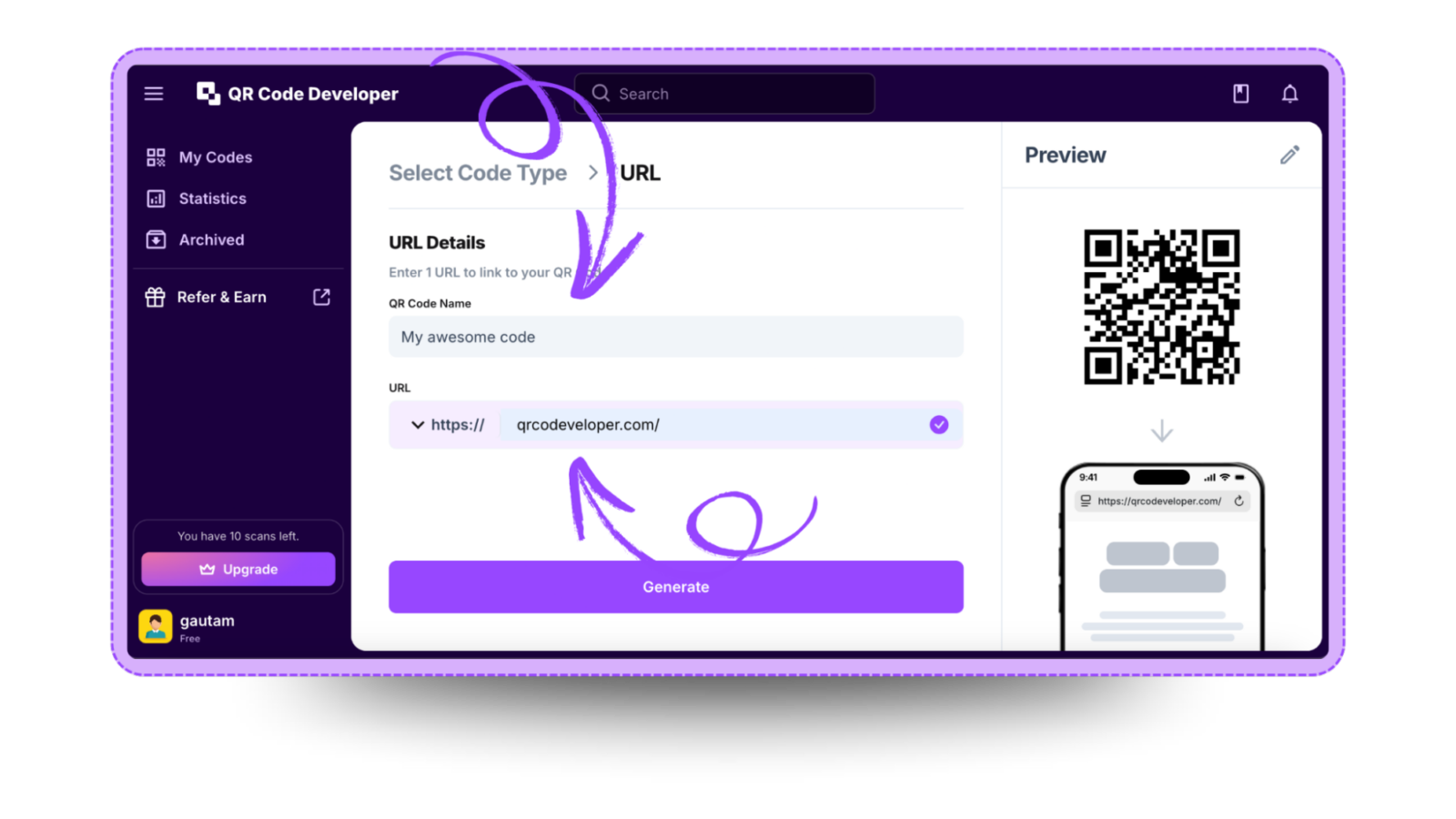
Step 4: Click on the Pencil icon in the top right corner for customization.
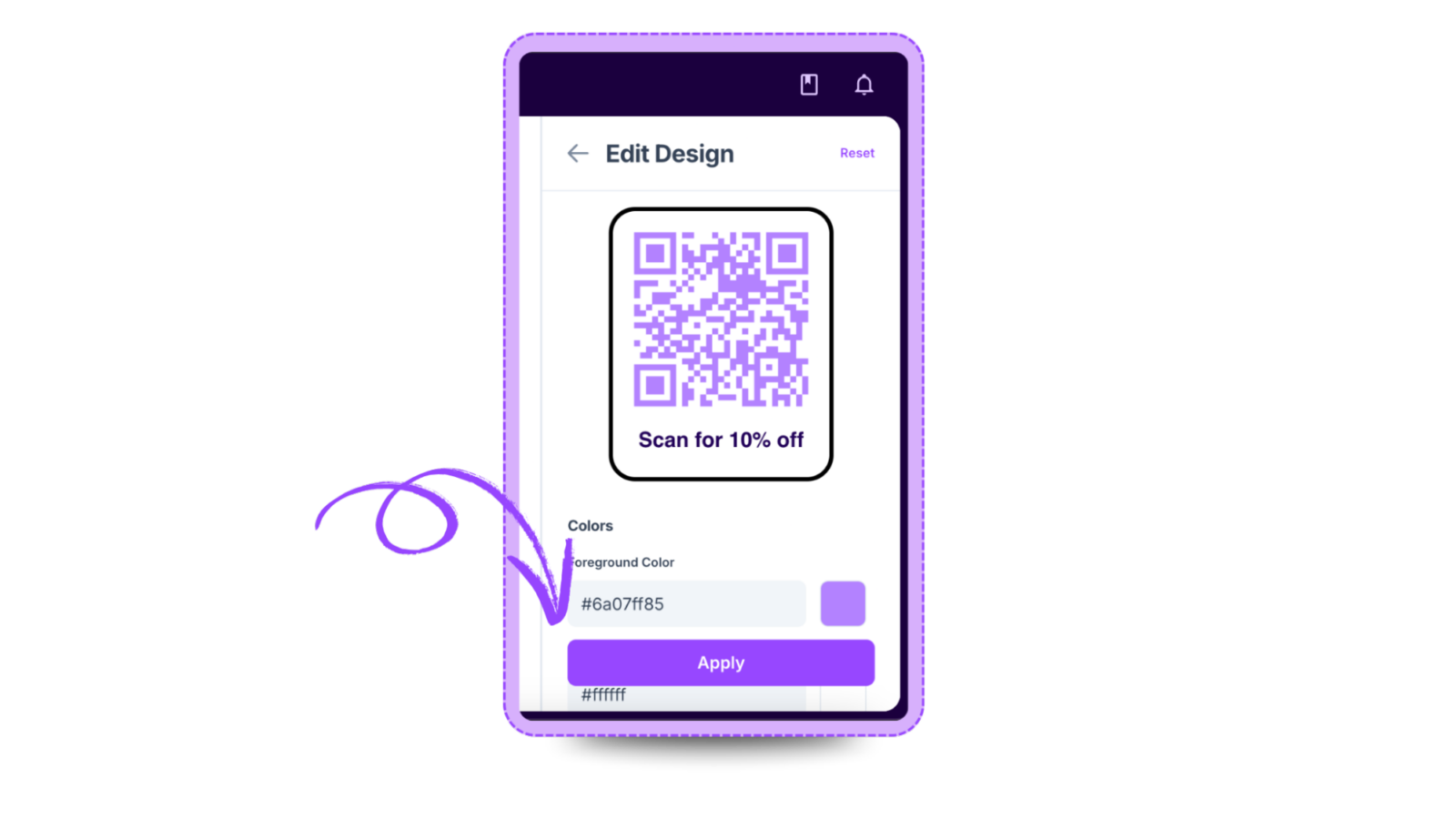
Step 5: Once done, click on Apply.

Step 6: Click on generate and your Google Docs QR code is ready!
Ready to create your QR code?
Generate custom QR codes in seconds - free and easy to use.
Create Free QR Code →