How to create a QR code business card

What is a QR code business card?
A QR code business card is a bridge between the traditional business card and your online profile. It can be as simple as a link to a profile with your contact details, or a custom-designed webpage with your portfolio, videos, and endorsements.
To create your digital business card you'll first need to decide where exactly your QR code will lead to, then create the QR code, and distribute it.
For example, you might be printing physical business cards and want to include a QR code that leads to your LinkedIn profile - that's super simple, just find your LinkedIn URL and create a QR code with it, and print that on your cards.
Alternatively you can create a digital version that looks like a regular business card, but can include clickable links like your email address and phone number.
Finally you could create an entire business profile with your own domain, and design it to act as an extended business card, with video introduction, contact form, portfolio, etc.
Whichever option you choose, you'll want to first create the digital business card, then the QR code, then print it for distribution.
This guide will lead you through all the steps necessary to create your QR code business card from start to finish.
Benefits of using a QR code business card
The benefits of QR code business cards are more than just keeping up to date with technology and having a novel way of giving out your contact info to colleagues. There are in fact several reasons why you might want to ditch your printed cards altogether and opt for a digital-first approach. For example:
Share more information
A physical business card can only hold a small amount of information before it becomes cluttered and unsightly. A digital business card allows you to share as much information as you want. Even images, video, PDFs etc.
Instant contact information
If you create a vCard people can scan your QR code and instantly have all your contact information available to save on their phone, making it extremely fast to share your details in a busy networking environment.
Always up to date
You can easily update the information on your digital business card without having to reprint a load of physical cards.
Analyze and track engagement
With our QR code generator tool you can track and analyze how many people access your card, click your links, etc. You could even use custom URL tags to track which contact form fills, MQLs, SQLs, or sales, etc. come through your QR code business card.
Low cost and eco-friendly
Since you only pay a flat fee, you can have unlimited scans of your QR code and unlimited views of your digital business card, without having to print thousands of physical cards. This makes it far cheaper in the long run, and better for the environment, especially considering the 88% of paper business cards are discarded within a week.
Best tools to create a QR code business card
These are the tools we'll use to create a digital version of your regular business card. These are all you need.
Justheadshots AI
If you're using a photo on your business card it needs to look professional, and nowadays you don't even need to go to a photo studio. AI can touch up a selfie to make it look perfect for a business context.
You'll still need to dress appropriately for your industry, but you don't need to worry about lighting so much if you use a tool like https://justheadshots.ai/
Canva
Canva is an one of the most popular online image editing tools out there, and has become so widespread partly thanks to how easy it is for those without a lot of design experience to use.
There are free and paid plans available, and the free version offers plenty of digital business card templates for designing a great looking digital business card.
Vistaprint, Visme, and Picsart are also all solid choices for creating your digital business card. Check them out and choose whichever has the business card template you like best.
QR Code Developer
Use our QR code generator tool to create the link to your business card. In just a few minutes you can generate a QR code for your business card that you can edit in the future in case you need to update your card.
How to Make a QR Code Business Card (Step-by-Step Guide)
Creating a QR code business card is straightforward and can be completed in around 15 minutes from scratch. If you already have a digital business card then it's even quicker.
Step 1: Take a professional photo
If you're going to include a photo, it really has to show you at your best. Only a few short years ago that would have meant a trip to the photography studio, but now we all have access to AI tools that can create professional photos from a simple selfie.
Go to JustHeadshots AI and click Create Your Headshots
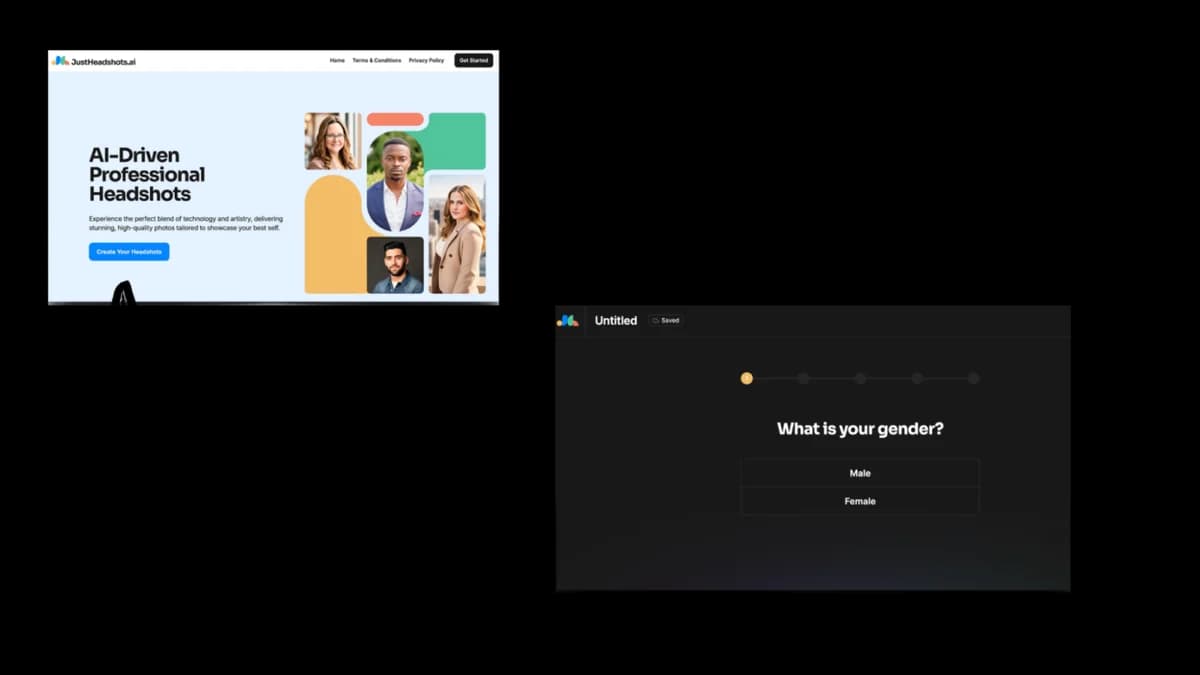
- Take 6-8 selfies and be sure to look directly into the camera.
- Take the photos against a plain background, as you can choose one in the tool that helps your photo stand out.
- Upload images and click Generate.
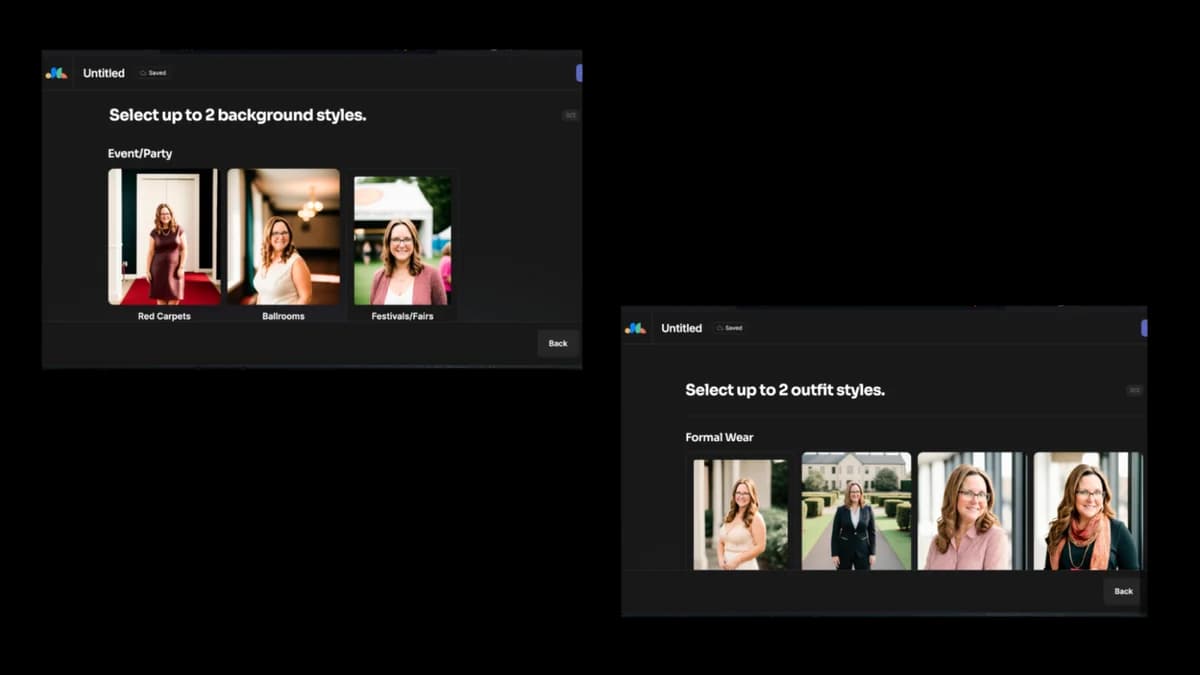
Now choose the photo you like the most, and download it so you can use it in the next step.
Step 2: Design your digital business card
First choose the tool you're going to use. We're recommending Canva as the best all rounder for anyone getting started, as it's super easy to choose and edit a template, but there are plenty of other great options such as:
- Vista
- Visme
- Picsart
- Decide on the main design template you want, then upload your photo and add your details in the fields.
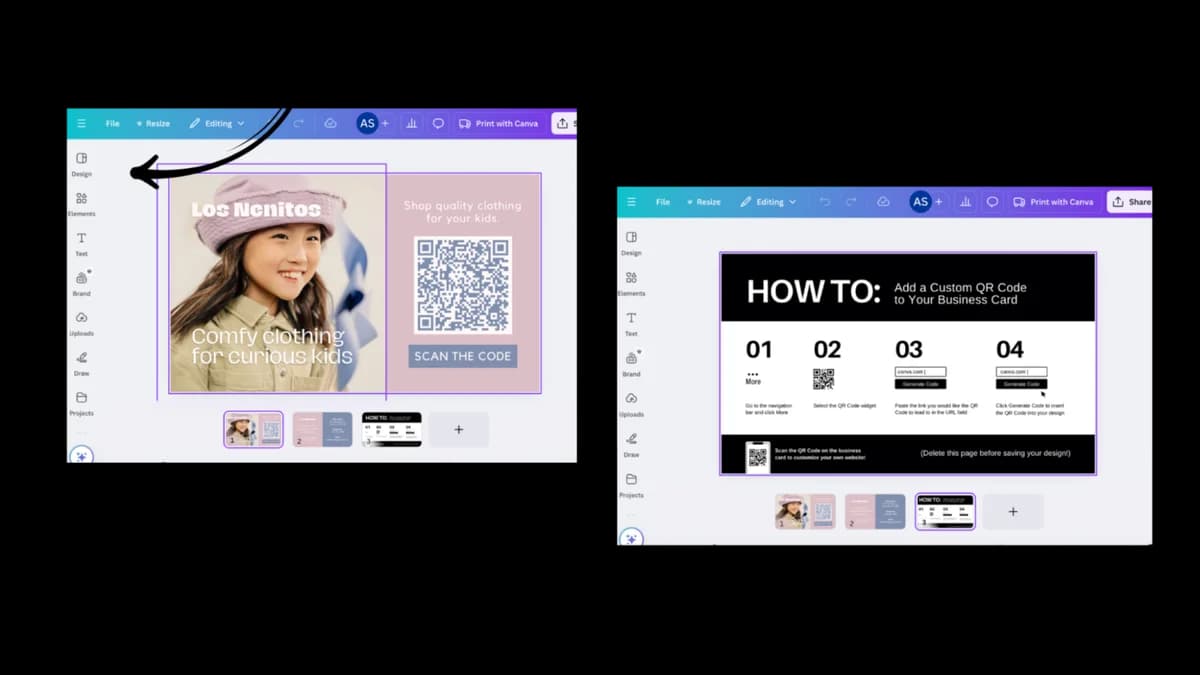
Don't overthink your design too much, but it's important to follow the basic rules of business card design and choose appropriate credentials.
| Do | Don't |
|
Use a consistent brand style Stick to your brand’s colors, fonts, and logo to ensure brand recognition. |
Use too many fonts or colors Limit to 2 fonts and 2–3 colors to maintain a clean and professional look. |
|
Keep it simple and uncluttered Prioritize readability. Leave white space to avoid overwhelming the reader. |
Use a generic template without customizing Make the design your own—customize colors, fonts, and layout to reflect your brand. |
|
Use high-quality elements Ensure your logo, icons, and any images are high-resolution and not pixelated. |
Crowd the design with too much text Avoid adding full addresses, long taglines, or unnecessary info. |
|
Include only essential information Name, title, company, phone number, email, and website/social handle are usually enough. |
Forget about print safety margins Keep important text and logos away from the edge to avoid being cut off. |
|
Use the correct size and bleed settings Canva offers presets (like 3.5" x 2" with bleed). Use these to ensure your design prints cleanly.ace for information |
Use Canva elements without checking licenses If you plan to print commercially, ensure any graphics or icons are free for commercial use. |
Step 3: Generate your QR code
Now that your digital business card is ready, it's time to create the QR code for your digital business card.
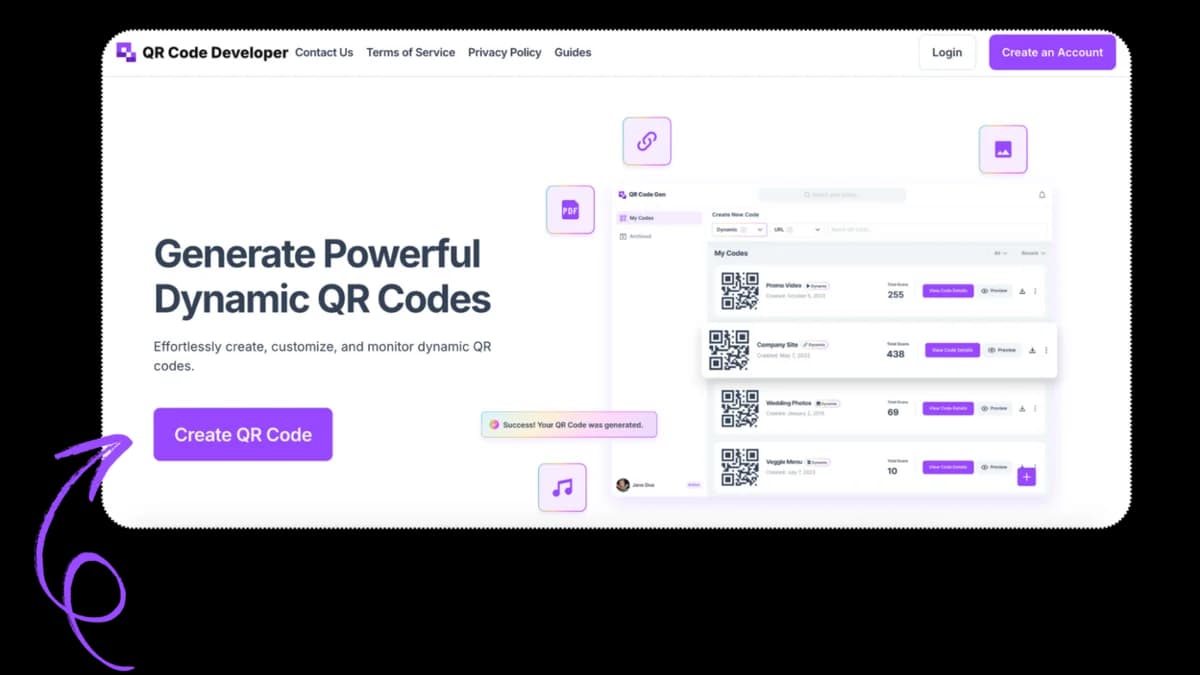
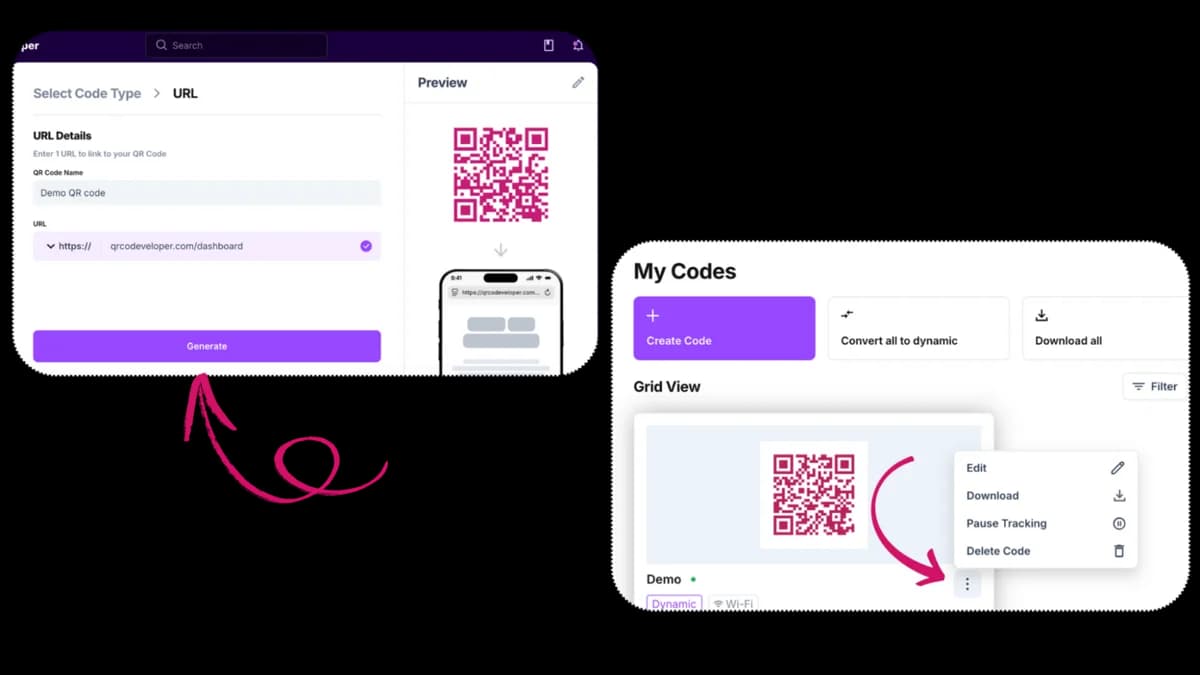
Go to QR Code Developer and click Create QR Code.
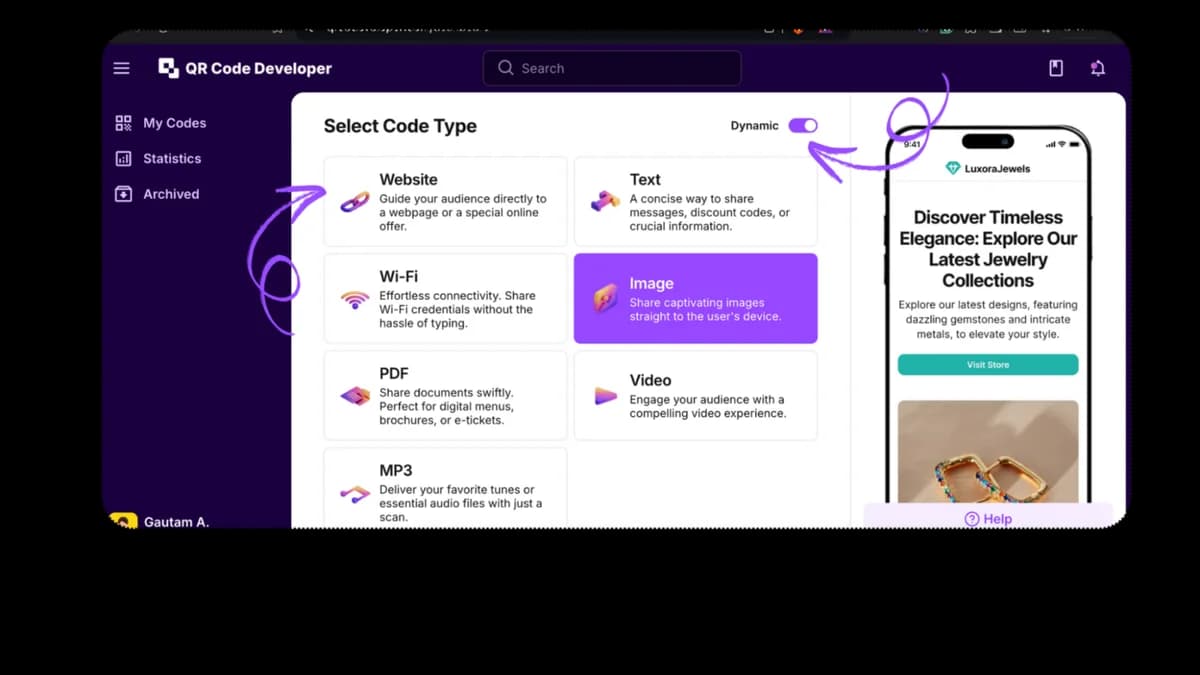
Select a suitable QR code type from the options.
For example, if you have a shareable link to access your business card, choose Website, but if you downloaded the file from Canva, choose Image.
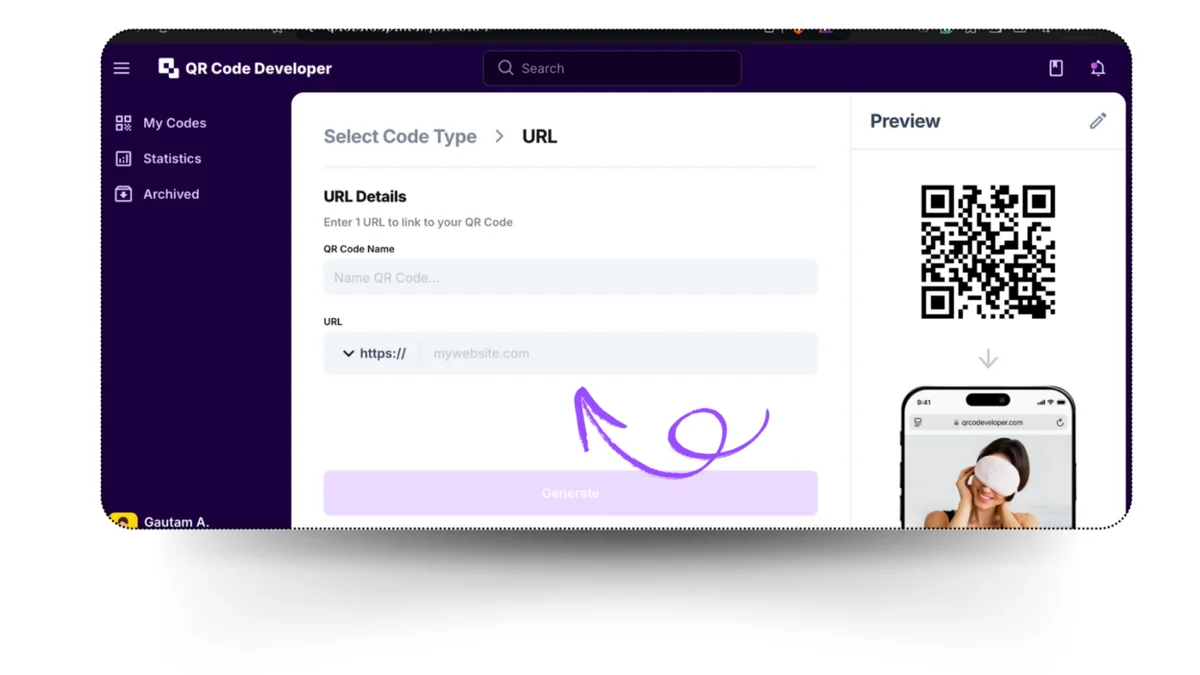
Give your QR code a name, and turn on Dyamic QR code so you'll be able to come back and update it later (of your details change for example), then either add the URL or upload the image.
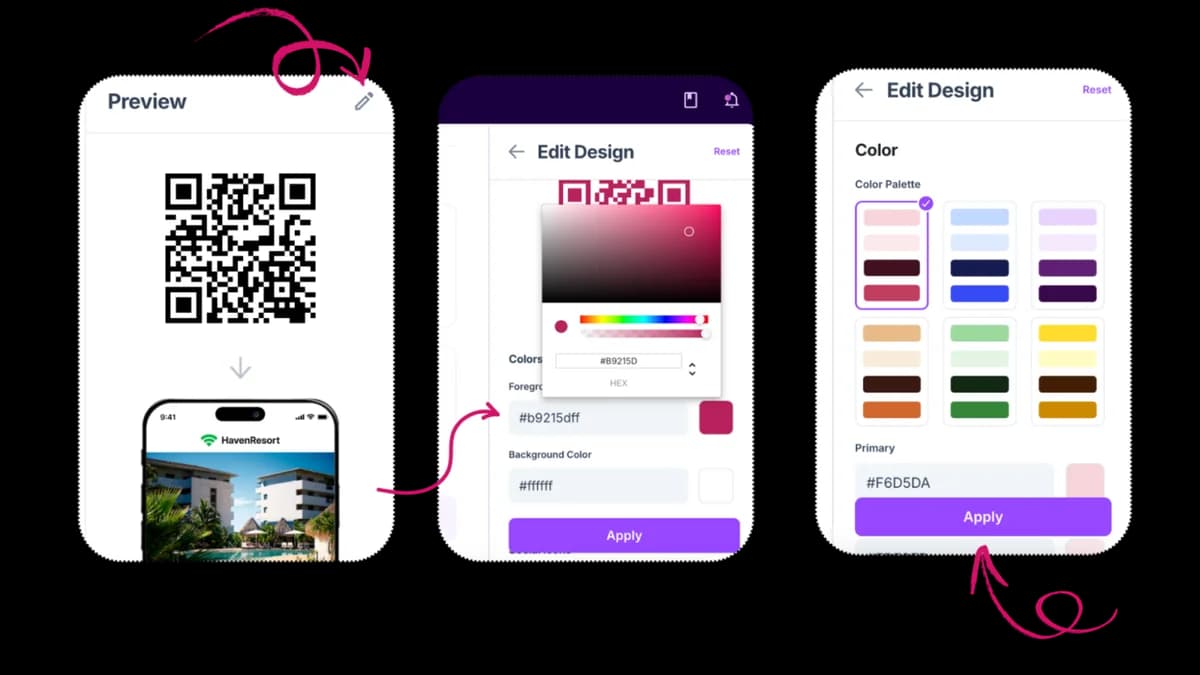
Within the QR code generator app, you also have the option to change the design of the actual QR code. You can:
- Add your brand colors.
- Insert brand logo.
- Adjust the code's shape and style.
- Write a Call-to-Action text on it.
Click Generate. Once your QR code is ready, click on the three dots at the bottom left of your code and you’ll see four options to Edit, download, pause tracking, and delete it.
Step 4: Print and distribute your QR code business card
Now you've got your QR code linked to your digital business card and ready to use, it's finally time to print and share your code. Of course you can upload the QR code image to any social profile, or send it directly to contacts, but you can also print it on regular business cards, either as an extra or as the main part of the design.
Your printed business card can now literally just be as simple as your name and QR code.
Design tips and common mistakes to avoid
Follow these design tips to fully optimize your QR code business card.
Keep it scannable
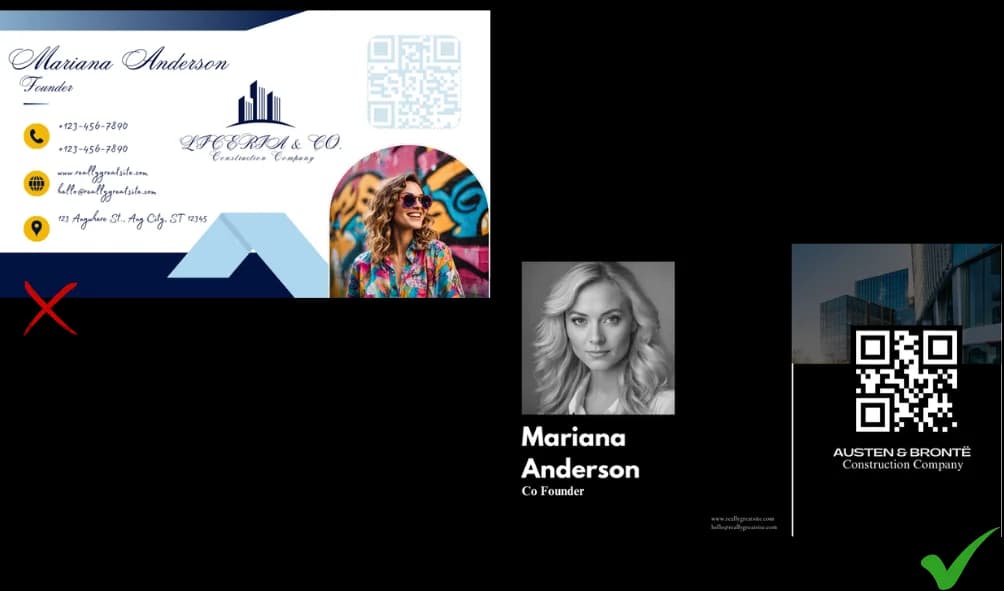
Ensure your printed QR codes are at least 1x1 inch and has good contrast against the background so that it is easy to scan. If you're printing to card, make sure you use a matt finish so that the phone's camera can scan it.
Include a CTA
Depending on what your QR code links to, use an appropriate CTA. For example if you have a vCard, use the CTA Scan to save my contact details or if you have included a portfolio it could be Scan to see my work, etc.
Make sure the writing is easy to read quickly
Don't overcrowd the details of your digital business card. Remember people will usually be viewing it on a mobile, so ensure the text is big enough for someone to quickly understand what's on the card.
People are busy, they don't want to search in some tiny text to find your contact details.
Mobile-friendly links only
Any links on your digital business card must be mobile-friendly. Most websites that you'd have a profile on are nowadays, but if you're designing a portfolio site yourself, keep this in mind.
Test before you print
Don't go printing thousands of cards with your QR code before you check and double check that everything is working and how you want it. If you use a dynamic QR code then you can at least update the destination (e.g. upload a new digital business card) without having to redo the entire QR code.
The statistics of business card impact
Recent studies reveal compelling numbers:
- 72% of people will judge a company or an individual based on the quality of their business card.
- 39% of people would prefer a business with a company with a better quality business card and avoid businesses with a “cheap looking” business card.
- 60% of small business owners consider business cards essential for their business progression.
- 90% of people are more likely to trust someone with a business card during an initial meeting, as it symbolizes preparedness and professionalism.
Physical vs. QR code business cards
Approximately 88% of printed business cards get discarded within a week. This is a good reason to consider ditching the physical card in favor of a digital business card. They save money and are environmentally friendly.
Here’s a comparison between both for you to make an informed decision:
| Traditional business card | QR code business card |
| Limited space for information | Unlimited digital content through QR code |
| Manual data entry required | Instant digital save to contacts |
| No ability to track usage | Track scans and engagement metrics |
| Requires reprinting for updates | Update digital content instantly |
| Higher long-term printing costs | Reduced printing needs |
| Risk of cards being lost or damaged | Digital backup is always available |
| Fixed content once printed | Dynamic, updatable content |
| Single point of contact | Multiple digital touchpoints (website, social, portfolio) |
Conclusion
A business card with a QR code is more than just contact credentials. It's a networking tool can bridges the gap between your physical business card and your online persona. It's how you represent your personal brand's creativity, innovation, and professionalism.
A well-designed business card can leave a lasting impression on the recipients and encourage people to look you up online. This will help you grow your network and increase job opportunities.
Anyone can take advantage of this technology and you can get started for free right away by following the steps above and using our QR code generator tool.
Happy networking!
Ready to create your QR code?
Generate custom QR codes in seconds - free and easy to use.
Create Free QR Code →